DVB-T Driver
- 4.5
- Rating
- 100.00K
- Installs
- Free
- Price
 Analysis by App-foxy
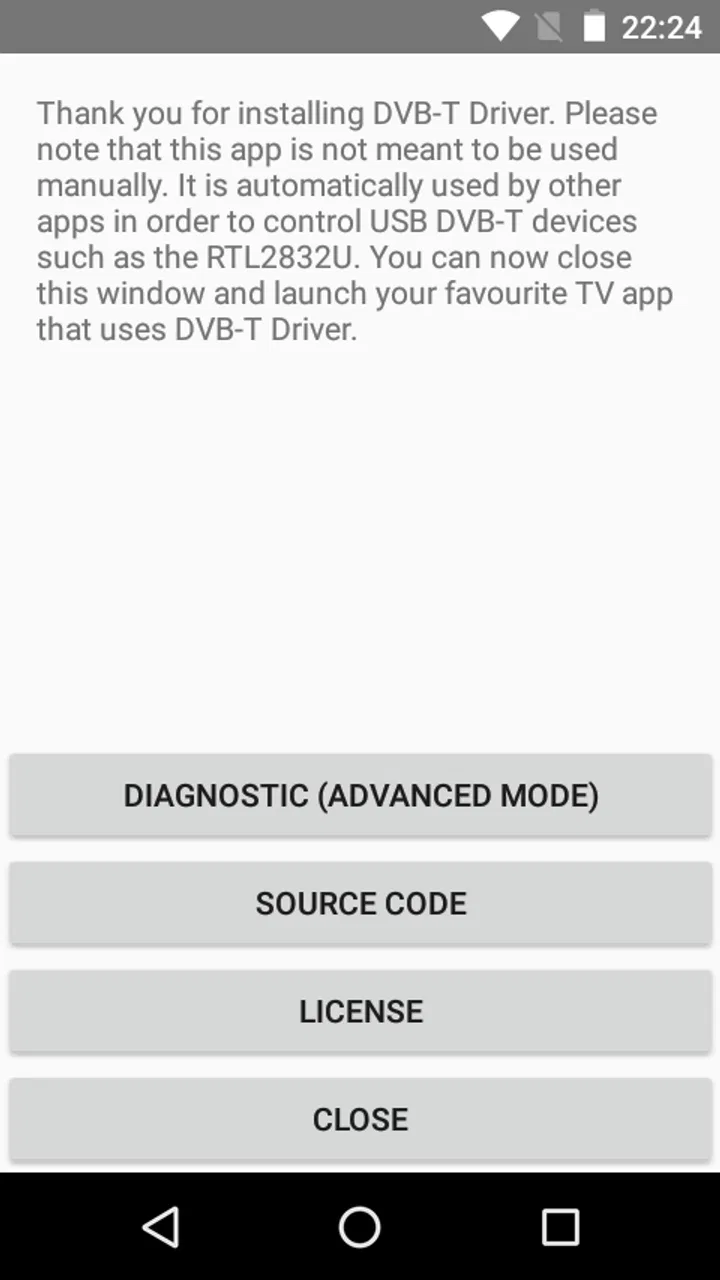
I approached DVB-T Driver as a small utility rather than a conventional television app. Its job is to help other Android apps communicate with compatible USB TV tuners, so its value appears mainly when another application needs a bridge to the hardware. That distinction matters: you do not open it expecting a channel guide, a video library, or a complete viewing experience. You install it because another app needs access to a tuner.
That focused role is both its strength and the main reason some people may find it confusing. The app sits in the background of a larger setup, and a successful result depends on the tuner, the USB connection, the host device, and the viewing application working together. In my experience, understanding that chain before troubleshooting saves more time than repeatedly reinstalling the driver.
Where the setup usually gets stuck
The first surprise is that DVB-T Driver is not designed to replace a television viewer. It belongs to the libraries and demonstration side of Android software, and Signalware Ltd presents it as a DVB-T driver for use by other apps. That means the most important screen may not be inside this utility at all. If you are looking for a list of channels immediately after installation, you are probably looking in the wrong place.
You May Also Like

 Blood Strike: 2.5 Anniversary
Blood Strike’s Loadouts Turn Every Drop Into a Tactical Gamble
A close look at Blood Strike’s custom loadouts: how fast access to signature weapons reshapes its battle royale rhythm, rewards preparation, and narrows the gap between fights.

 Pandora - Music & Podcasts
Pandora’s Music Is Easy to Start, but Harder to Recover
Pandora’s strength is its low-effort path from a seed to a station. Its weak spot is how much confidence it asks you to place in connection, setup, and quiet recovery.

 8 Ball Pool
 Is Built on Rivalries, Rematches, and Routine
A close look at the rivalries, rematches, shared routines, and unanswered safety questions that turn a quick pool match into a persistent mobile community.

 Samsung Music
’s Quiet Strength Is Playing What You Already Own
Its reach comes less from spectacle than from dependable access to a personal library. That simplicity is both the app’s strongest retention engine and its ceiling.

 AccuWeather: Weather Radar
AccuWeather Review: A Quick, Clear Forecast for Everyday Decisions
For everyday plans, the best forecast is the one you can understand quickly. AccuWeather makes rain timing, radar, and local conditions easy to act on, with a few trade-offs.

 Hill Climb Racing
Why Hill Climb Racing Still Turns Crashes Into One More Run
A tiny car, a bumpy hill and one more upgrade: Hill Climb Racing keeps resurfacing because its simple chaos makes every near-miss feel personal.
More From Our News Desk



A typical arrangement involves an Android phone or tablet, a USB TV tuner, a suitable adapter or cable, and a separate application capable of using the tuner. The driver is the connecting layer. If the viewer cannot find the device, the problem may be the physical connection, compatibility, or the viewer's own support rather than the driver itself.
This is also why a high user rating should be interpreted carefully. The app has a 4.7 average from around 500 ratings and has passed 100,000 installs, which suggests that it is useful for a substantial group of people. Those users are likely arriving with a specific hardware-and-software combination. Someone without a USB tuner has little reason to install it, no matter how appealing the rating looks.
The most common point of friction is expectation. A driver does not normally provide the same experience as a streaming service or a dedicated television receiver app. It does not turn an ordinary phone into a television by itself. You still need compatible broadcast hardware and an application that knows how to request access through the driver.
Another easy mistake is testing with too many variables at once. If you change the cable, tuner, viewer, and antenna together, you will not know which change solved the problem. I recommend treating the setup as a short chain: confirm the device is connected, confirm Android reacts to it, confirm the viewing app can use it, and only then investigate scanning or reception.
What to check before blaming the driver
Start with the physical side. A phone may have a USB-C port while the tuner uses a different connector, so the adapter is not a minor detail. It must provide a proper data connection, not merely charging. If the tuner is loose, the adapter is unsuitable, or the connection is interrupted when the phone moves, the software may appear broken even though it never receives a stable device.
Next, check whether the Android device is running a compatible system version. DVB-T Driver supports Android from version 5.0 onward, but that broad support range does not guarantee that every modern phone, USB controller, or tuner combination will behave identically. Older Android support is useful for repurposing a spare device, while newer hardware can introduce its own USB or power-management quirks.
It is worth preparing the antenna before starting a channel scan. A driver can help software reach the tuner, but it cannot improve a weak broadcast signal or compensate for an unsuitable antenna position. If the tuner is detected but the scan finds nothing, move the antenna to a clearer location and repeat the test before removing the driver.
Keep the first test simple. Use one known-compatible viewing application, connect the tuner directly where possible, and avoid adding hubs or extension cables until the basic connection works. Every extra component creates another possible failure point. This is particularly useful with phones, where a small adapter or cable fault can look exactly like an unsupported tuner.
The app is free and rated for Everyone, so there is no purchase decision or age-related barrier to trying it. That makes it reasonable to install during a controlled test. Still, free does not mean universal: the driver only helps when the rest of the equipment and software can use the same communication path.
A practical first-run routine
I would use this order: install the driver, connect the tuner and antenna, open the intended television application, and look for its device or tuner option. If Android displays a prompt asking which application should handle the USB accessory, choose the application you actually plan to use rather than assuming the driver itself is the viewing tool. The exact wording can vary by device, but the principle is the same: the viewer needs to be the part that requests and uses the tuner.
If nothing reacts, disconnect the tuner, restart the phone, and reconnect it without changing several other things. A fresh connection can clear a temporary USB state. If the device is still invisible, test the adapter and tuner with another compatible setup if one is available. That comparison is more informative than repeatedly tapping scan inside the television app.
Do not mistake a successful installation for a successful hardware test. The driver can be present on the phone while the tuner remains inaccessible because of the cable, the host device, or the application being used. The useful milestone is not “the package installed”; it is “the viewer recognizes the tuner and can begin its own operation.”
One subtle but important distinction is between device detection and broadcast reception. Detection means the software can communicate with the tuner. Reception means the antenna, local signal, tuner, and scanning settings are producing usable channels. If the viewer identifies the tuner but returns an empty channel list, that is progress, not proof that the driver failed.
Recovering the workflow when something breaks
When a previously working arrangement stops working, I would avoid immediately clearing every app or changing the whole setup. Reconnect the tuner first and check whether the viewer still offers it as an input. If it does, focus on the antenna and scan process. If it does not, focus on the USB connection and the relationship between the viewer and the driver.
A useful recovery method is to reduce the setup to its original known-working form. Remove the hub, use the original adapter if you still have it, keep the antenna in the same position, and launch the same viewer. Once that works, add changes one at a time. This is especially helpful after moving from a tablet to a phone, because two Android devices can handle the same USB tuner differently even when both meet the minimum operating-system requirement.
If the viewer crashes or closes during detection, test whether it behaves normally without the tuner attached. That comparison separates a general viewer problem from a hardware-access problem. If the viewer fails in both situations, DVB-T Driver is unlikely to be the only explanation. If it fails only when the tuner is connected, then the USB path or compatibility between the viewer and tuner deserves attention.
Another practical step is to close other applications that might have claimed the USB accessory. Android generally cannot let several applications control one USB device at the same time. If another television tool was opened first, disconnecting and reconnecting the tuner before launching the intended viewer can restore a clean handoff.
Power can also be a hidden constraint. A tuner connected through a phone may draw more power than the phone comfortably supplies, particularly when the display is active and the viewer is scanning. I would not assume that a driver update or reinstall can solve that. If the connection repeatedly disappears, try a more stable powered arrangement where the hardware and Android device support one, while keeping the test as simple as possible.
It is tempting to judge the app by whether it displays video, but that is the wrong recovery signal. The driver is successful when the compatible application can access the tuner. Picture quality, channel availability, audio behavior, and recording options belong to the broader hardware-and-viewer combination. Keeping those responsibilities separate prevents a reception issue from becoming an unnecessary driver complaint.
The current version is 1.44, and the app was released on December 7, 2022. Those details are useful when comparing behavior across devices or checking that you installed the intended package, but they should not replace hands-on diagnosis. A version number cannot make an unsupported tuner compatible, and reinstalling the same version will not repair a damaged cable or poor signal.
When the driver is not the cause
There are several situations where I would look elsewhere first. If Android never reacts to the connected tuner, start with the adapter, cable, port, and power path. If the viewer detects the tuner but finds no channels, investigate the antenna and local broadcast conditions. If only one viewer fails while another recognizes the hardware, the difference is probably in application support or configuration.
Compatibility is another boundary. The store summary describes access for USB TV tuners, but that does not mean every tuner uses the same chipset or communication method. A tuner designed for a different broadcast standard may not be useful for your local broadcasts, even if its connector fits. The driver cannot change the tuner’s underlying standard or turn incompatible hardware into a supported receiver.
It is also not the right choice if your goal is simply to watch television over the internet. For that use, a streaming application is more direct because it does not require a USB tuner, antenna, adapter, or local reception. DVB-T Driver makes sense when you specifically want to use physical broadcast hardware with an Android application.
Likewise, people wanting a polished all-in-one experience may prefer a dedicated receiver application or a hardware package that includes its own software path. This utility is better suited to users who already understand that the driver is one component in a modular arrangement. The trade-off is flexibility: you may be able to choose the viewer and hardware combination, but you also take responsibility for making those pieces cooperate.
Everyday uses that justify the extra hardware
A realistic use case is a spare Android tablet placed near a window or in a workshop, connected to a USB tuner and antenna so it can receive local broadcasts without relying on an internet connection. In that scenario, DVB-T Driver stays mostly invisible. Its value is that the viewing application can reach the tuner, while the tablet handles the screen and controls.
Another use is testing a tuner before committing to a larger setup. Because the driver is free, I would use a spare compatible Android device as a diagnostic station: connect the tuner, open the intended viewer, confirm detection, and only then decide whether the antenna placement and viewing workflow are practical. This is more efficient than assuming that a tuner works because it fits the port.
There is also a useful distinction between portability and convenience. A phone-and-tuner arrangement can be portable, but it is not necessarily as effortless as opening a streaming app. You must carry the tuner, adapter, antenna, and sometimes a power solution. The benefit is access to compatible broadcast reception in places where internet streaming is inconvenient; the cost is a setup that needs more careful handling.
For an older Android device, the minimum operating-system support can be an advantage. A spare tablet that no longer runs many current entertainment apps may still be suitable for this narrow task, provided the USB hardware and viewing application cooperate. That gives the driver a practical role in extending the usefulness of an older device, although the final experience still depends on the other software involved.
My practical verdict
I see DVB-T Driver as a purposeful component, not an app that should be judged by the standards of a full television product. Signalware Ltd keeps the focus narrow: help other applications access USB TV tuners. For the right user, that focus is exactly what is needed, and the free availability makes experimentation straightforward.
My recommendation is strongest for someone who already owns a compatible tuner, has an Android device with a suitable USB connection, and is prepared to troubleshoot the complete chain. Before installing, decide which viewing application will use the tuner and make sure you have a reliable adapter and antenna. During testing, separate detection problems from reception problems, and change one part of the setup at a time.
I would skip it if you only want on-demand television, do not have USB tuner hardware, or expect the driver to provide channels and video on its own. A streaming service or a self-contained television solution will be simpler in those cases. But if your goal is to connect physical DVB-T hardware to an Android viewer, this small utility is a sensible piece of the puzzle.
Overall, the app earns its place through usefulness rather than visible features. Its best quality is that it can quietly enable a larger workflow without charging for the driver itself. Its main weakness is equally clear: when the setup fails, the driver is only one possible cause. The smartest way to use DVB-T Driver is to treat it as a connection layer, verify the USB path first, and judge the final result only after the tuner, antenna, Android device, and viewer have all been tested together.
FAQs for DVB-T Driver
01What is DVB-T Driver and what does it do?
DVB-T Driver is an application designed to enable digital television reception on mobile devices. It allows users to watch live TV channels by connecting a compatible DVB-T USB dongle to their Android device. This app transforms your device into a portable TV, offering convenience and accessibility to a variety of broadcast channels.
02Which devices are compatible with DVB-T Driver?
DVB-T Driver is primarily designed for Android devices with OTG (On-The-Go) support. Users must ensure their smartphone or tablet supports OTG functionality to connect a DVB-T USB dongle. Compatibility may vary, so it's advised to check the app's requirements and confirm device support before downloading.
03Do I need an internet connection to use DVB-T Driver?
No, an internet connection is not required to use DVB-T Driver. The app relies on a connected DVB-T USB dongle to receive digital television signals directly. This allows users to watch TV without consuming mobile data or relying on Wi-Fi connectivity, making it ideal for travel or areas with limited internet access.
04Are there any additional costs or subscriptions required?
DVB-T Driver itself does not charge for its basic functionalities. However, users must purchase a compatible DVB-T USB dongle separately. There are no ongoing subscriptions required to access free-to-air channels, but premium channels might require additional subscriptions depending on local broadcasting services.
05How is the picture quality on DVB-T Driver?
The picture quality on DVB-T Driver largely depends on the strength and quality of the broadcast signal received by the DVB-T dongle. In areas with strong digital TV signals, users can expect clear and high-quality video. The app supports standard and high-definition channels, providing a good viewing experience when conditions allow.
Pros
- User-friendly interface for easy navigation.
- Supports a wide range of DVB-T devices.
- Regular updates enhance compatibility.
- Low resource consumption on devices.
- Offers detailed signal quality metrics.
Cons
- Limited support for older Android versions.
- Requires external hardware for full use.
- Some users report occasional signal drops.
- Interface lacks advanced customization options.
- Initial setup may be confusing for novices.

DVB-T Driver
Gallery